


Report Interpretation Training
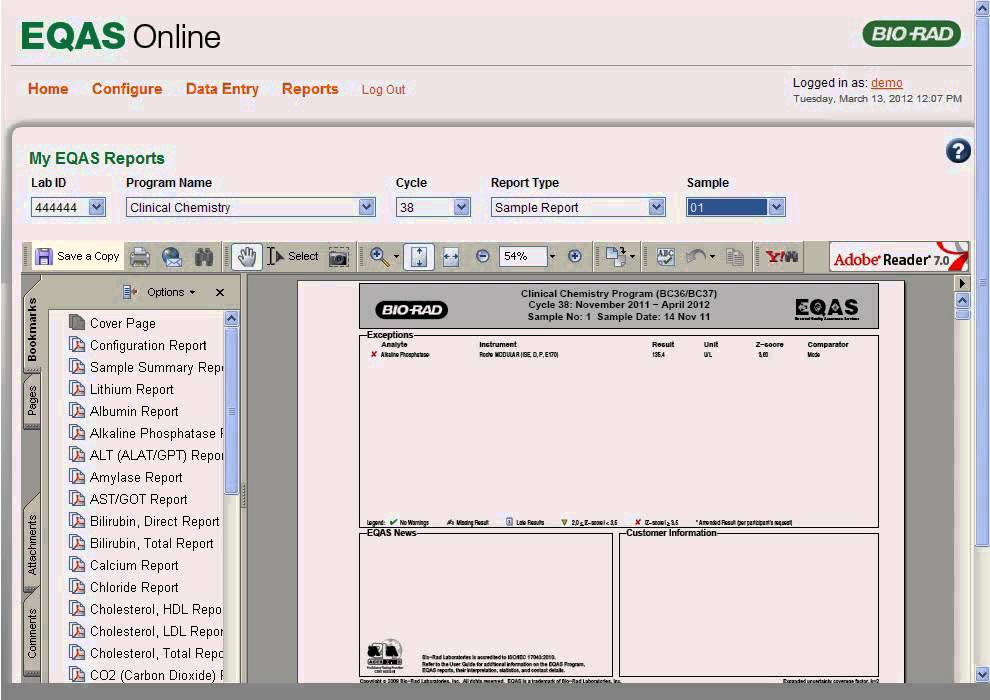
EQAS Online – Reports
Bio-Rad does statistical analysis of results and uploads reports. Watch this video to see how you can access all available reports by selecting My EQAS Reports from the menu.

EQAS Qualitative Reports Training
This tutorial provides a guide to interpreting two kinds of qualitative reports, the Peer Qualitative Sample Report and the Peer-Method-All Results Qualitative Sample Result Report.
EQAS Quantitative Reports Training
This tutorial provides a guide to interpreting four kinds of quantitative reports, the Sample Report, End-of-Cycle Report, Method Summary Report, and Subgroup Report.
Featured Content
EQAS Online/Mobile Training

EQAS Online User Guide
This user guide provides an introduction to EQAS Online, an overview of lab id’s and EQAS programs, and chapters on setup tests, user roles, data entry, and EQAS reports.
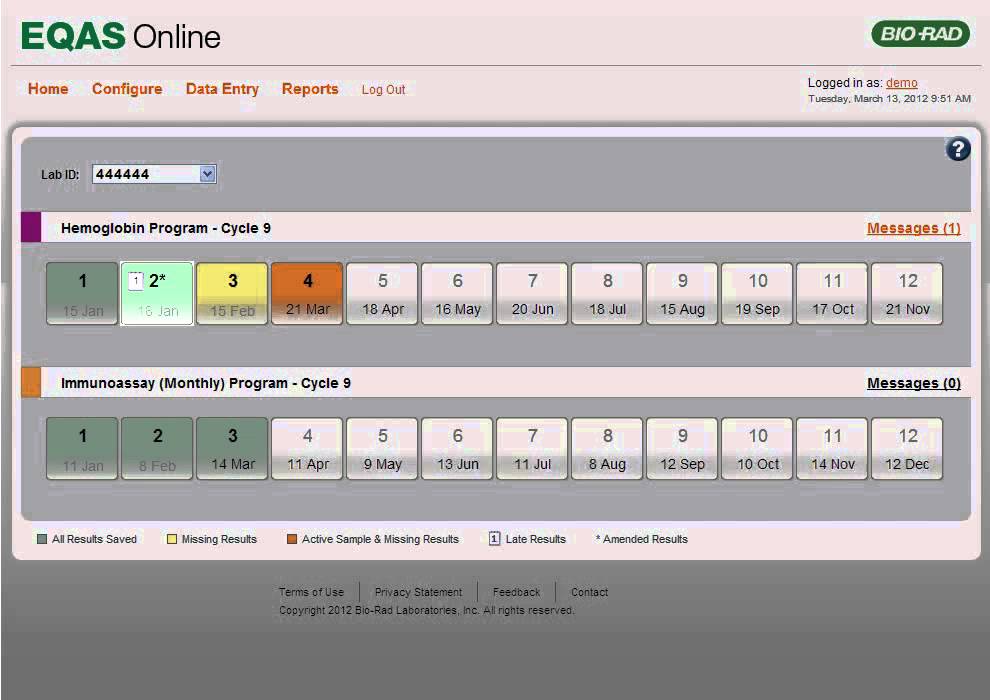
Home page
This video discusses the home page. If your lab participates in a program, the home page will automatically display relevant information, including your lab id and programs.
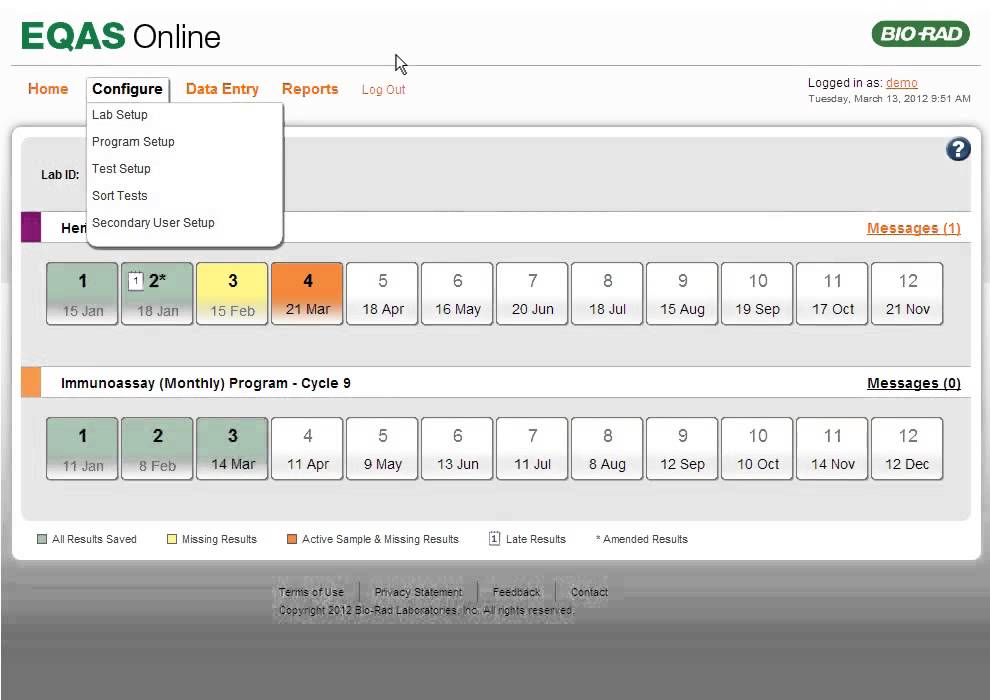
Lab setup
When we set up an online account for your lab, you’ll be assigned a unique lab id. To learn more about the process of being set up in an EQAS program, watch this tutorial.
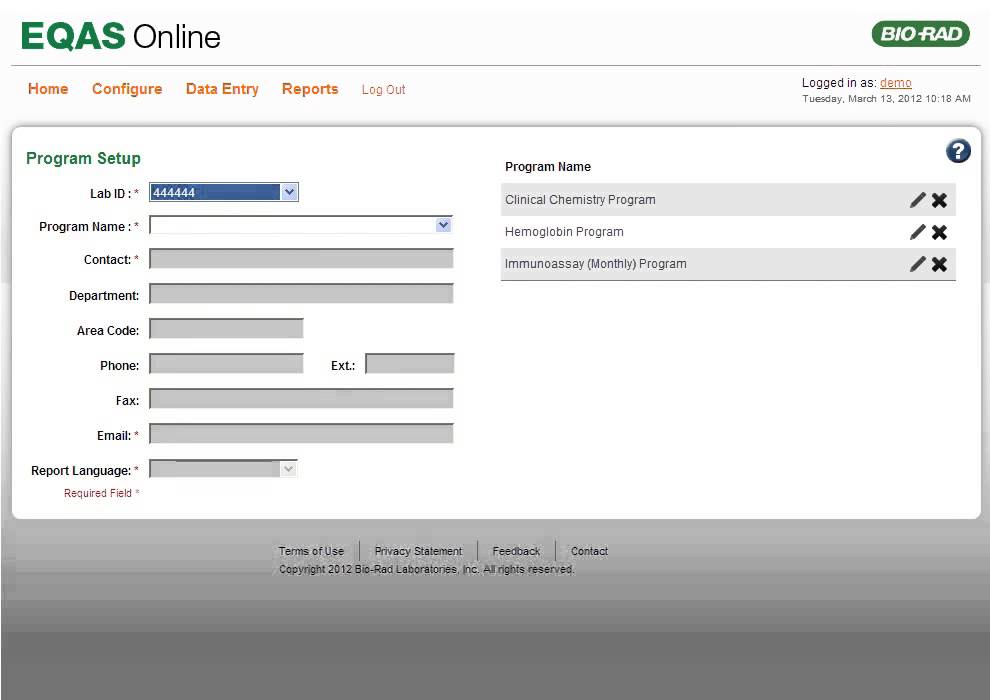
Program setup
This video discusses how your lab is set up in an EQAS program. When your lab enrolls in a program, we set up an account and assign an id—matched to your program results.
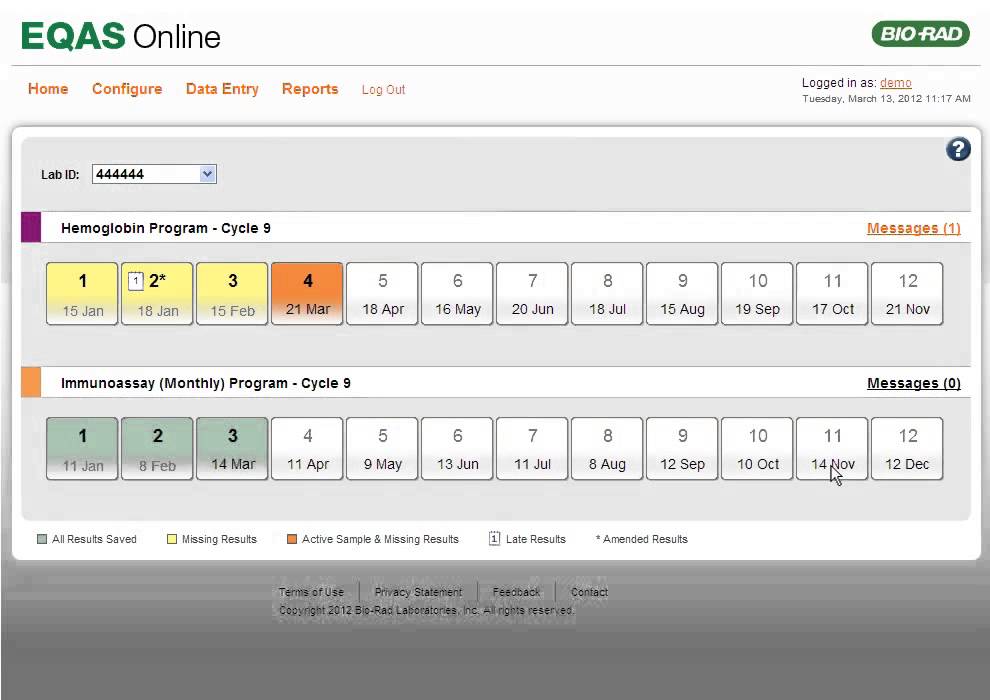
Test setup
After setting up an EQAS program, you can add tests, configure them, or delete some. You can add them as a group or individually. Learn more by watching this tutorial.
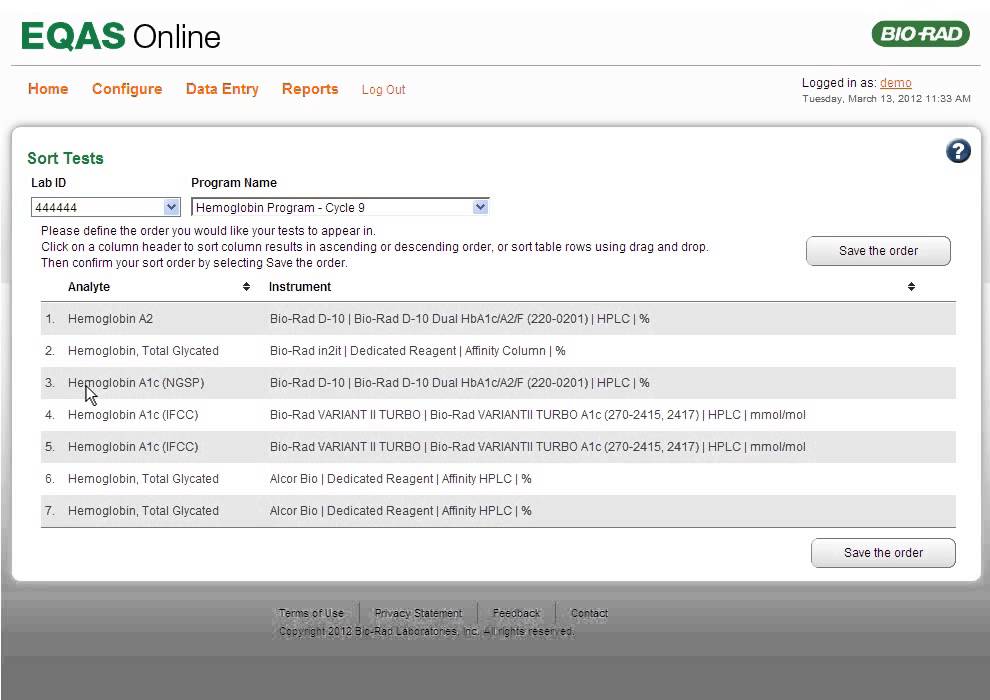
Sort tests
The order of analytes on the Sort Tests page determines the order in which they appear while entering results. This video describes how you can sort them differently.
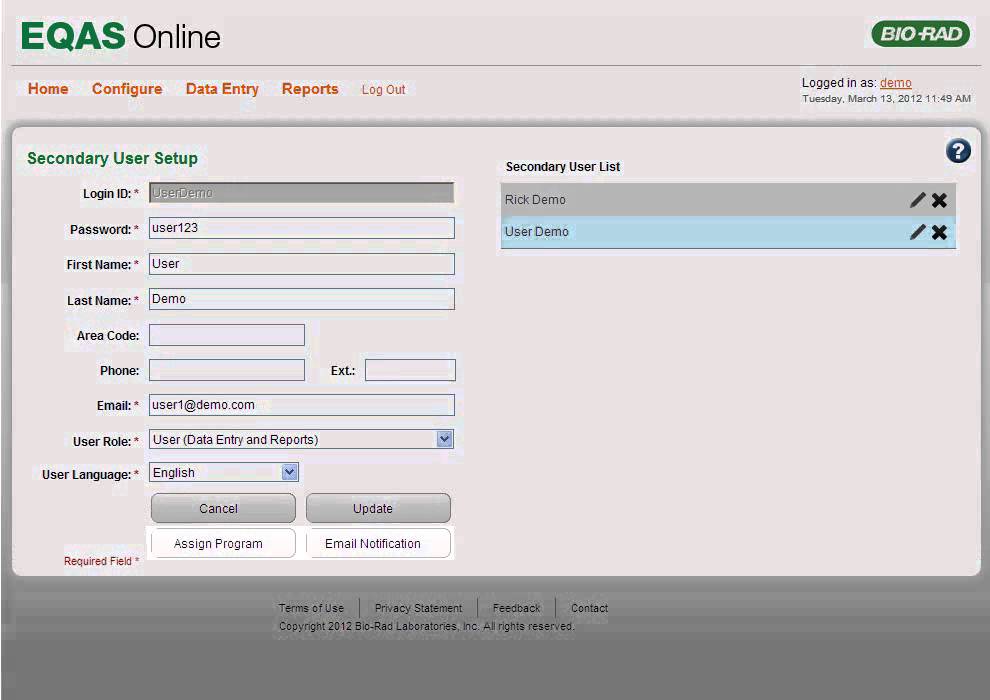
Secondary user setup
There are two types of users, primary and secondary. A lab can have only one primary, but multiple secondary users. Watch this tutorial to learn how to add secondary users.
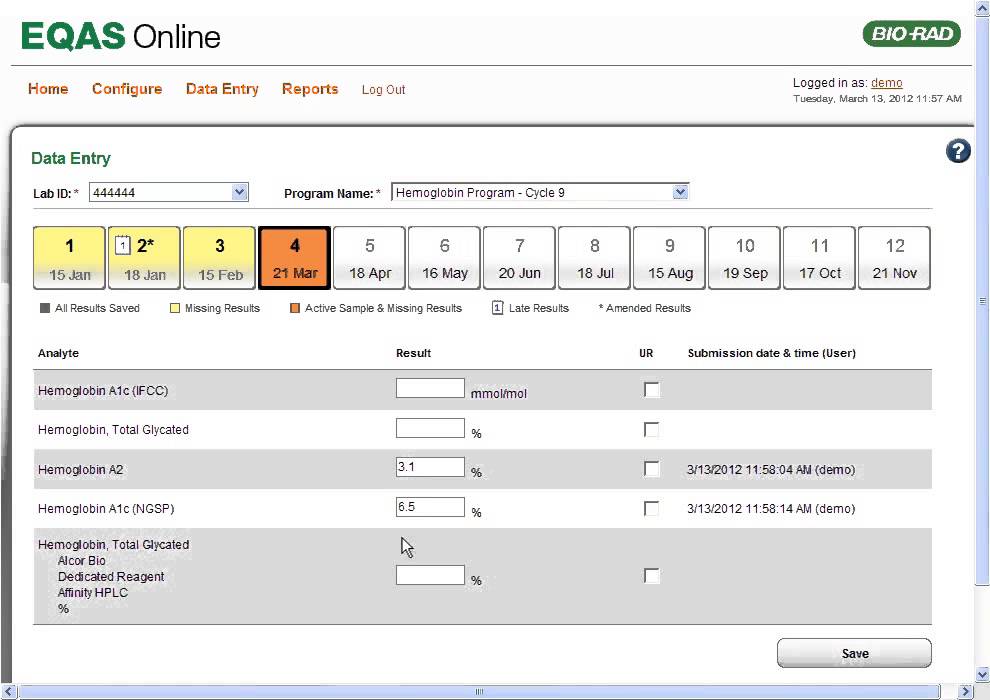
Data entry
You can use the Data Entry screen in EQAS Online to add sample results or edit existing results. Learn more about how to access this screen and enter your sample results.
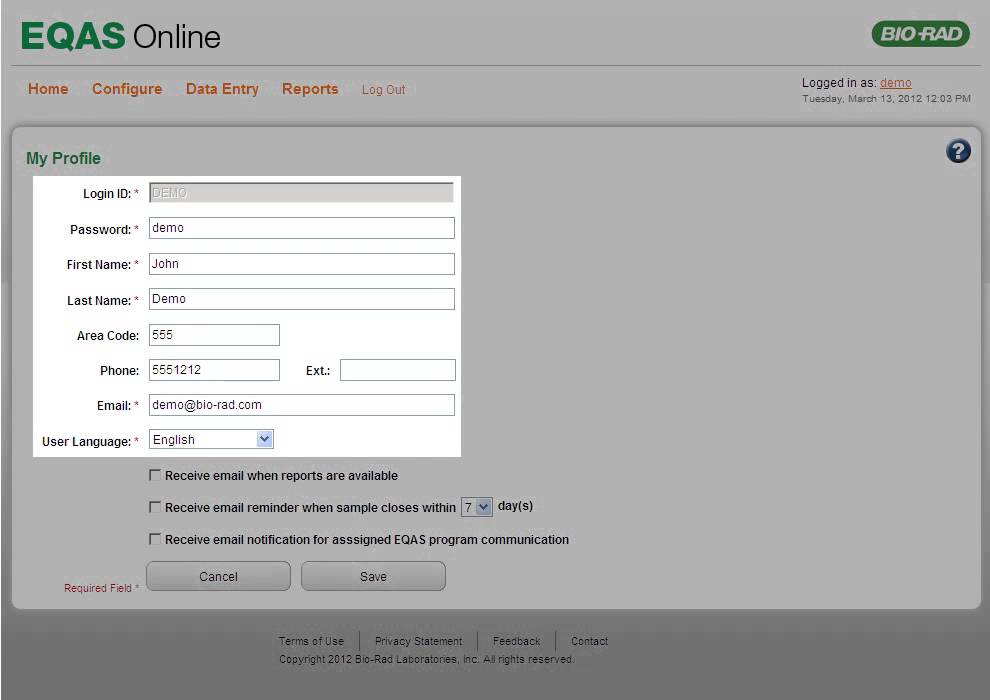
My profile
Users can edit their profile at any time in EQAS Online by clicking their name link at the top of the page. This opens the My Profile page where users can edit select fields.